Enterprise SaaS · Net-new feature · BigFix WebUI
Shruti Upadhyay · UX Designer · HCL Software · 2025
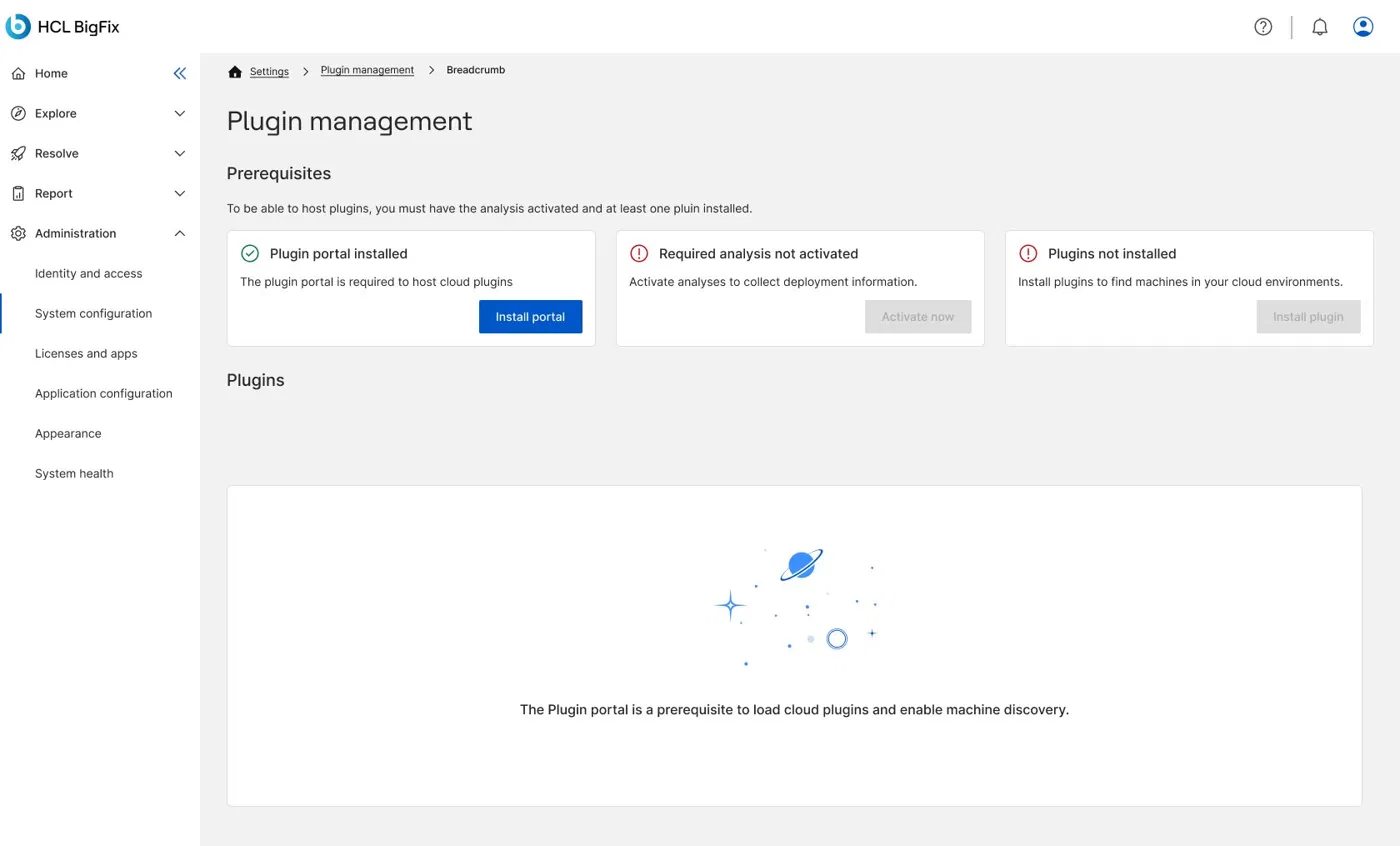
What is BigFix, and why this matters
HCL BigFix is an enterprise endpoint management platform used by large organizations to discover, secure, patch, and manage thousands of devices across their network, from laptops and servers to cloud virtual machines. Originally built for on-premise infrastructure managed through a traditional desktop console, BigFix is transitioning to a modern web UI as part of a broader SaaS transformation.
As enterprises rapidly shifted workloads to the cloud, a critical gap emerged. IT teams were discovering and managing cloud instances outside BigFix, then trying to reconcile that data manually, creating blind spots in security posture and compliance reporting.
BigFix addresses this through cloud plugins, provider-specific connectors that automatically discover cloud instances and bring them into BigFix for management. This project designed the administrative interface to install, configure, and manage those plugins from within the BigFix WebUI for the first time.
The core gap: cloud infrastructure is dynamic and ephemeral. New instances spin up, get terminated, and change regions constantly. Without a way to automatically discover and onboard these devices, enterprise environments have blind spots. Unmanaged cloud instances become unpatched vulnerabilities, a direct security and compliance risk.
The Plugin Portal, a new platform component
The Plugin Portal is a dedicated component introduced in BigFix 10, built to manage cloud devices and modern endpoints. It acts as the host for all cloud plugins. Without it installed and running, no cloud plugin can function, making it a hard prerequisite that had to be surfaced prominently in the UI.

Understanding who actually uses BigFix
BigFix operates across a complex organizational hierarchy. Research surfaced an ecosystem of interdependent users, each with distinct goals and pain points.
BigFix operates across a complex, multi-role organization, from CIOs and CISOs down to individual IT Admins and Developers. Within that entire ecosystem, Scott (BigFix admin) is the sole direct user of Plugin Management, every other role interacts with its output indirectly, through the devices it discovers.
CIO / CISO
Security strategy
Security leader
Policy direction
VP Risk mgmt.
Risk oversight
IT Operations
Scott
BigFix Admin, Master Operator, Plugin Management owner
Rick
Deployment specialist
James
Content creator
Wayne
Server owner
Security
Rapahel
Security analyst
Luke
Help desk operator
Jessica
Device owner
SCOTT — BigFix Admin, Master Operator
What Scott does
Installs BigFix platform components and the Plugin Portal · Manages relay and client infrastructure · Provisions operators and provides ongoing support · Configures and manages cloud plugins (AWS, Azure, GCP, vSphere)
Decision factors
Easy infra maintenance, Visibility across environments, Reliable delegation access, Cost-effective setup
Rapahel — Security Analyst
“How is group X doing against established security policies? What do I need to tell people to fix?”
Needs: Cloud devices visible in BigFix, Real-time posture, Audit trail
Rick — Deployment Specialist
“I want to ensure my devices comply with corporate policies and standards and quickly resolve technical problems.”
Needs: Cloud devices surfaced, Compliance data, Agent deployed
Wayne — Device/Server Owner
“I want a central location to get approval software on my device, at my own convenience.”
Needs: Cloud instances managed, Agent installed, Content delivery
Luke — Help Desk Operator
“I want to respond to end user tickets for software provisioning and troubleshooting remotely with minimal impact.”
Needs: Devices under management, Real-time status
James — Content Creator
“My goal is to easily create and manage customized IT solutions using existing applications as quickly and efficiently as possible.”
Needs: Cloud endpoints available, Content deployment
Jessica — Device Owner
“I want to ensure my devices comply with corporate policies and standards and quickly resolve technical problems.”
Needs: Minimal disruption, Device stays compliant
The admin isn’t just configuring a plugin. They’re enabling the entire security and compliance ecosystem downstream. A failed plugin configuration doesn’t just inconvenience Scott, it creates blind spots for Rapahel, gaps for Rick, and unmanaged risk for Wayne.
Visibility at a glance
Admins need to immediately understand what’s connected, what’s healthy, and how many devices have been discovered, without digging through menus or running queries.
Secure, provider-specific credential management
Each cloud provider uses a fundamentally different authentication mechanism. The UI must handle all of them consistently while making it easy to create, update, revoke, and monitor credential status.
Clear system feedback during configuration
Misconfiguration during plugin setup leads to failed discovery, a silent failure that’s hard to debug after the fact.
Sequential setup guidance
Cloud plugin setup has real technical prerequisites (Plugin Portal installation → analysis activation → plugin installation). The interface must guide admins through this dependency chain without requiring external documentation.

Four providers, four completely different auth models
BigFix has a notoriously steep learning curve. Plugin management was historically handled through command-line tools and server-side configuration files, entirely outside any UI. This was the first time it was introduced to the WebUI as a first-class feature.
How do we design a plugin management experience that allows an enterprise IT administrator to install, configure, and manage cloud plugins across four different providers, within a consistent, accessible WebUI, without requiring deep knowledge of the underlying infrastructure?
Provider
Authentication Required
AWS
Access Key ID + Secret Access Key. Optionally: IAM Roles (ARN format) with External ID and Region per role
Microsoft Azure
Tenant ID + Subscription ID + Client ID + Client Secret
Google Cloud Platform
Service account key via uploaded .json file
VMware vSphere
vCenter Server URL + Username + Password
The UI needed to handle all four auth models within a single consistent interaction pattern, a credential drawer that adapts its fields based on provider selection, without feeling like four completely different interfaces.
IAM Roles — a specific AWS complexity
Introduced in BigFix 10.0.4, IAM role support lets a single credential operate across multiple AWS accounts. Each role requires: Role ARN (fully qualified), External ID (optional, cross-account security), Region (optional, scopes the role).
Advanced settings vary by provider
AWS — Proxy URL, username, password, log path, log verbose toggle. Azure — Log path + log verbose only. GCP and vSphere — no advanced settings section.
Hard prerequisites exist in the system
The Plugin Portal must be installed and analyses activated before any plugin can be configured.
Multi-provider complexity
Four providers. Four auth models. Different advanced settings per provider.
Existing design system
All designs had to align with HCL’s established component library, WCAG standards, and the emerging BigFix WebUI design language.
What made it into this release, and why
Must Have
Prerequisites status page
Plugin installation flow (all 4 providers)
Credential management (add/edit/delete)
Active/Expired credential status
General settings (discovery frequency)
Provider-specific settings (AWS default region)
Should Have
IAM role support for AWS
Allowed regions scoping
Last discovery timestamp + device count
Plugin version + upgrade action
Remove deleted/correlated device settings
Could Have
Advanced settings proxy configuration
Log path + verbose toggle
Multiple credentials per provider
Search/filter in credentials table
Won’t Have
Automated credential rotation
Discovery history/audit log in UI
Custom plugin development interface
Real-time discovery trigger
Prioritization was guided by four factors: whether the feature was technically required for core plugin operation, impact on security visibility, frequency of use across enterprise deployments, and feasibility within the design sprint scope.
How this was approached
The process followed HCL’s design thinking methodology (Empathize → Define → Ideate → Prototype → Test), executed in agile sprints.
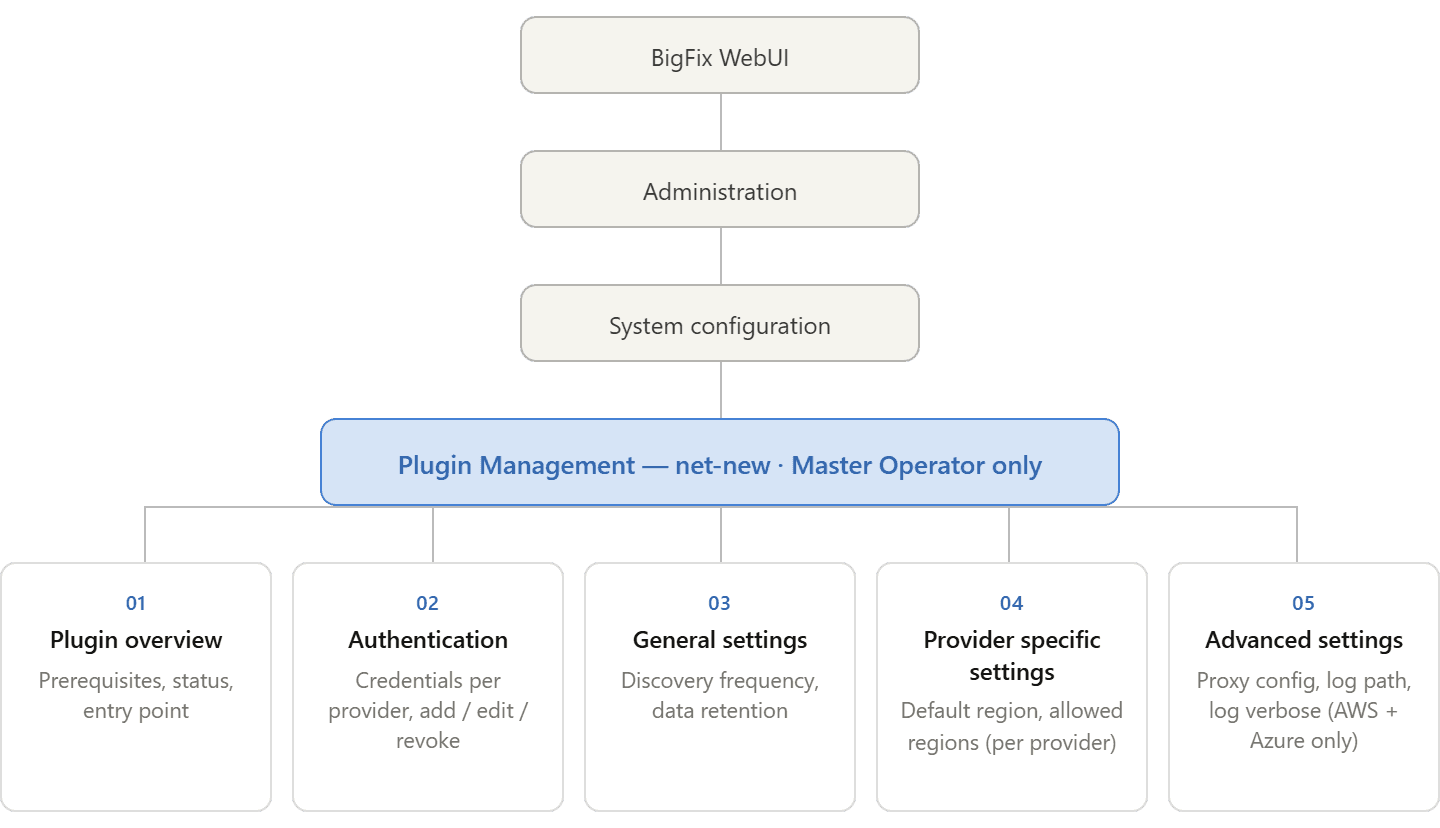
Information Architecture
1
Plugin Overview (entry point, system readiness)
2
Authentication (credentials per provider, Active/Expired status)
3
General Settings (discovery frequency, retention policies)
4
Provider-Specific Settings (adapts per provider)
5
Advanced Settings (proxy, logging, AWS/Azure only)
Core User Flow

Wireframes, early explorations
How the design evolved, screen by screen — the reasoning behind each change is covered next.


01 — Visibility of system status
Administrators must always know the current state, Plugin Portal health, analysis activation, discovery progress, credential validity, device count.
02 — Structured configuration
Rather than exposing all settings simultaneously, the interface organizes configuration into logical sections with progressive disclosure.
03 — Scalability across providers
The interface accommodates all provider-specific variations while maintaining a consistent structural pattern.
04 — Administrative efficiency
Frequent actions must be immediately accessible; friction must be minimized at every interaction point.
Design Evolution — Draft to Final
01
Prerequisites Layout
Dense Table → Three Sequential Status Cards

Why this direction:
The original table format showed plugin portals as data rows, no sense of sequence, dependency, or next step. The card layout maps directly to how the system works: portal installed first, then analyses activated, then plugin installed. Progressive disabling of downstream CTAs makes the dependency chain self-explanatory.
02
Main Page Structure
Split Panel → Tabbed Single Page
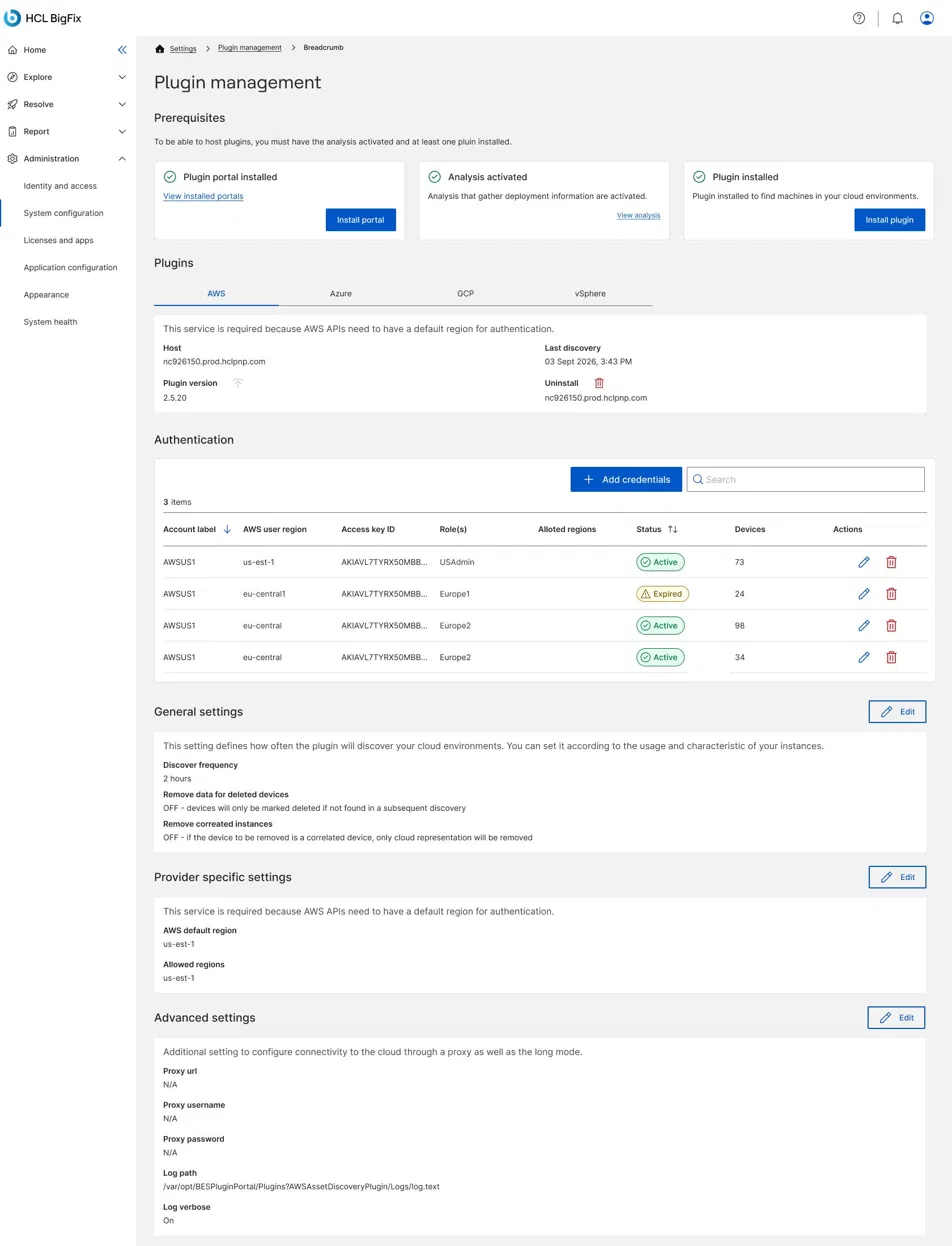
Why this direction:
The split-panel layout echoed the legacy desktop console but fought the direction of BigFix WebUI, requiring context switches between sidebar and content panel. The tab-based single page puts all configuration in one continuous, scannable view.
03
Install & Edit Flows
Full Page → Right-Side Drawer


Why this direction:
Full-page forms break the user’s sense of place. The drawer pattern keeps the main page visible in the background, making clear what’s being configured and where they’ll return. All configuration flows use the same drawer pattern for consistency.
04
Edit Settings
3-Column Modal → Single Column Drawer


Why this direction:
The 3-column layout created cramped, hard-to-scan fields for settings that are rarely changed but require careful attention. The single-column drawer gives each field room to breathe. A show/hide toggle was added to the password field to address real security concerns in open office environments.
05
Credentials Form
2-Column Wide Modal → Single Column Drawer with Grouped Role Cards
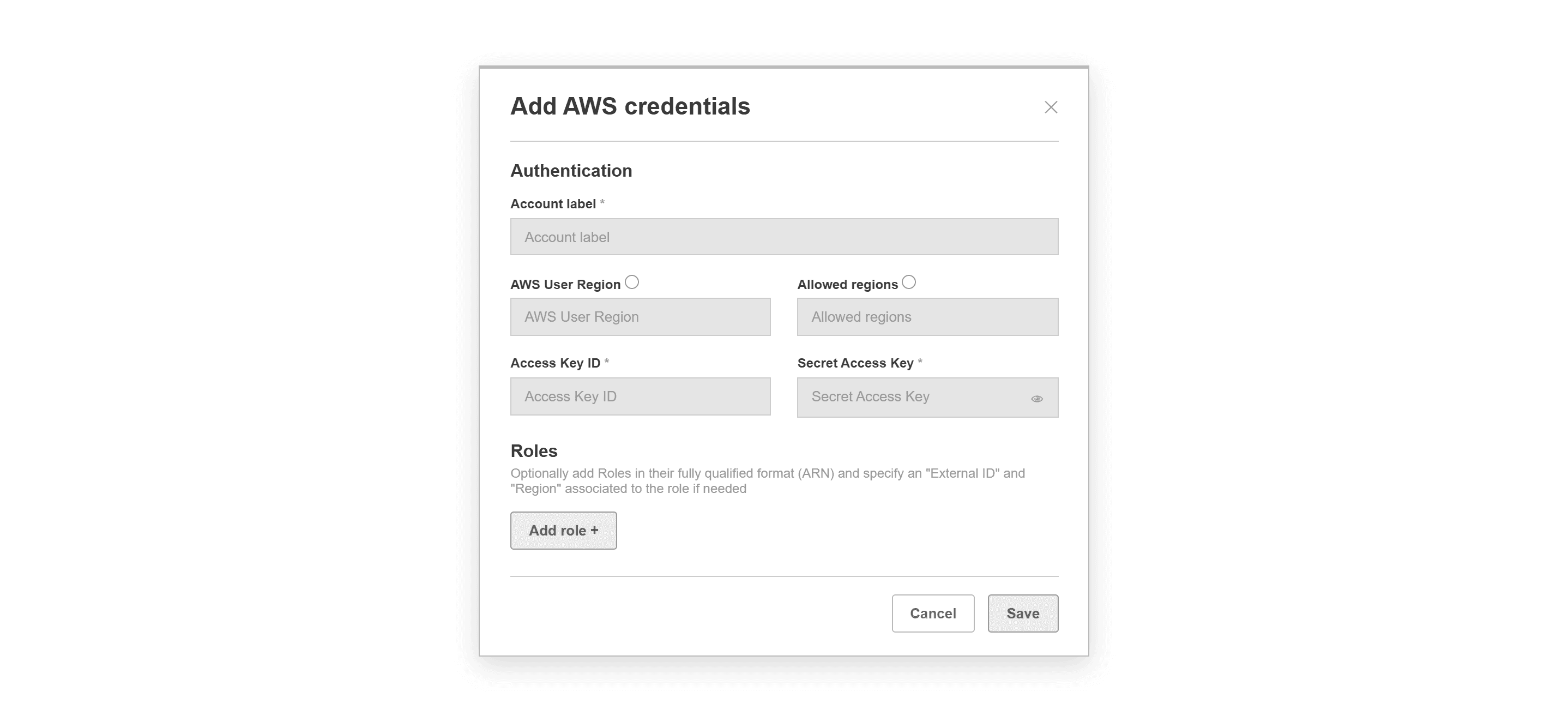
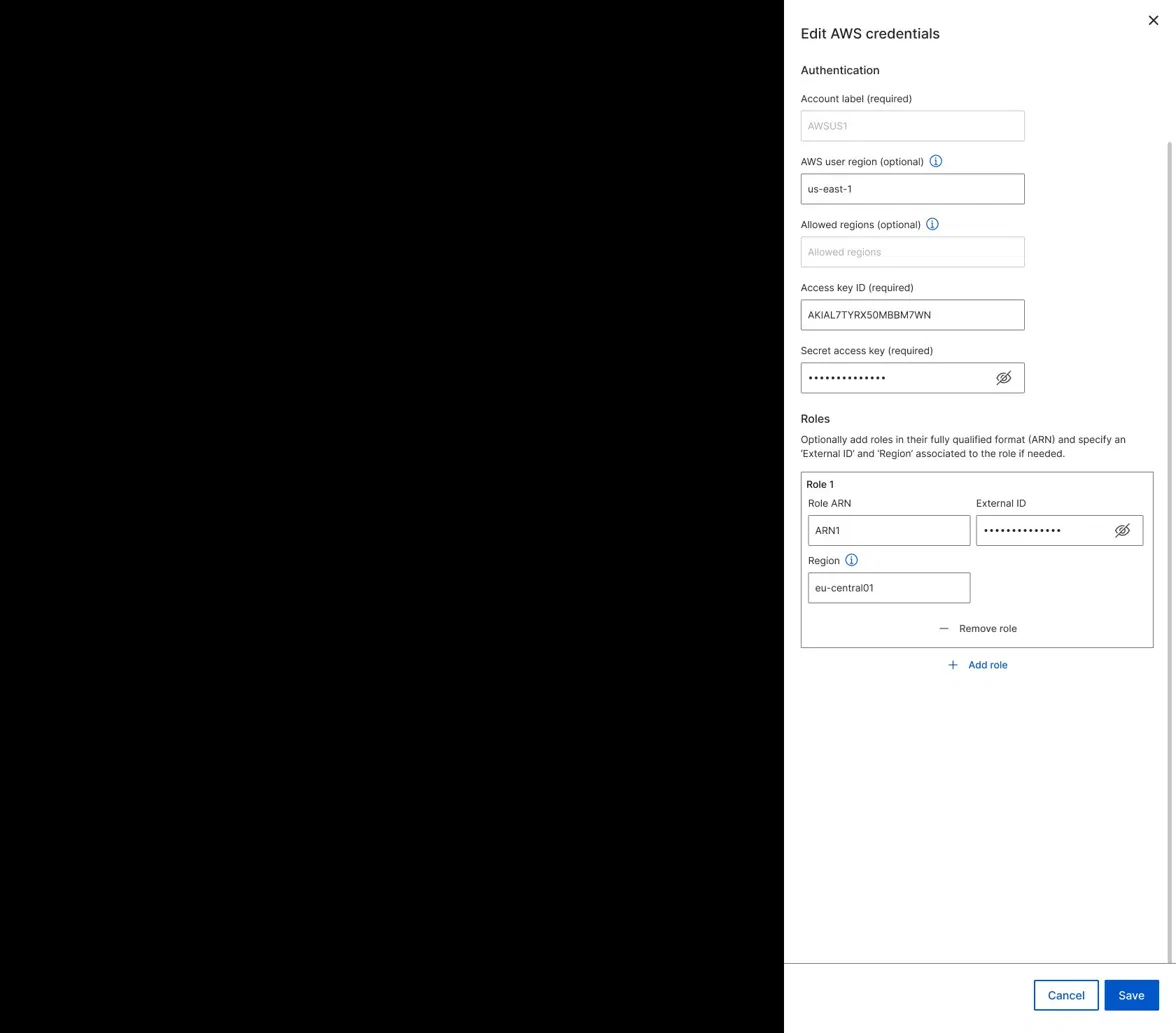
Why this direction:
Two-column forms created cramped layouts, particularly risky for a credentials form where mistyped values cause failed discovery. Grouping Role ARN, External ID, and Region into a card per role makes the object relationship immediately clear.
06
Hosting Portal Selection
“Select device” Button → Inline Radio Group

Why this direction:
The original button hid all options behind an extra click, preventing comparison before committing. Inline radio buttons expose all available hosting portals immediately, since portals can differ by version or network location.
